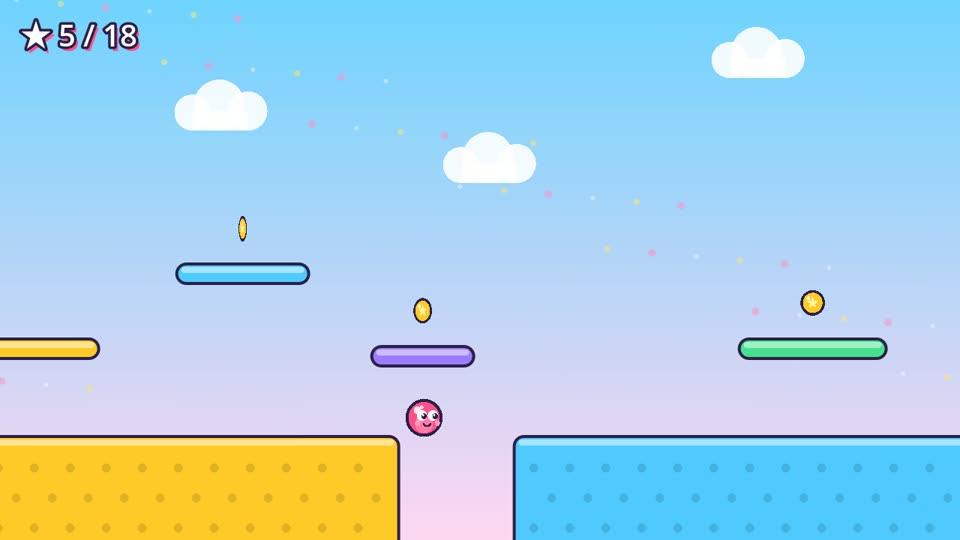
1. What We're Building
A platformer lives or dies on how the jump feels. The physics part is easy in Godot 4 — CharacterBody2D and move_and_slide() do the heavy lifting. What separates a stiff prototype from something pleasant to play are a handful of small tricks: coyote time, a jump buffer, variable jump height, a faster fall, and a bit of squash and stretch.
This tutorial walks through a complete, working platformer for Godot 4.6 in GDScript 2.0. Every excerpt is copied from the real project's scripts (player.gd, main.gd, enemy.gd and friends); only indentation was changed for the web. The game, Pop Jump, has:
- a squishy blob hero with acceleration, friction and separate air control;
- forgiving jumps: coyote time, jump buffer and variable height;
- squash on landing, stretch on take-off;
- a level defined as plain data — arrays of
Rect2andVector2; - 18 spinning star coins, 4 patrolling enemies you can stomp;
- respawn on falls and hits, a goal flag and a win screen;
- a smoothed camera that follows the player.
The whole player controller is one _physics_process() of about 45 lines. Here are its tuning constants — the numbers you'll tweak most:
const SPEED := 360.0
const ACCEL := 2800.0
const FRICTION := 2400.0
const AIR_ACCEL := 1800.0
const JUMP_VELOCITY := -820.0
const GRAVITY := 1900.0
const MAX_FALL := 1400.0
const COYOTE_TIME := 0.1
const JUMP_BUFFER := 0.12
All values are in pixels and seconds. Remember that in Godot 2D, positive Y points down, so a jump is a negative velocity.
2. Scenes and Input Actions
The scene tree is tiny. Main (a Node2D with main.gd) holds a SkyLayer CanvasLayer on layer -1 for the background, an empty Level node that gets filled at runtime, the Player and a HUD CanvasLayer with two labels. The Player is a CharacterBody2D with a 36×40 RectangleShape2D and a Camera2D child. The window is 1280×720.
There are three input actions: move_left (A, Left), move_right (D, Right) and jump (Space, W, Up). One detail worth copying: in the final project.godot every key event is bound by keycode (with physical_keycode left at 0), not by physical key. The first version didn't respond to the AI's simulated key presses, and rebinding the controls was the fix (more in Building It with AI). If your own input testing or automation sends key events that don't trigger actions, check which of the two your actions match.
3. CharacterBody2D Movement: Acceleration, Friction, Air Control
The beginner version of platformer movement is velocity.x = dir * SPEED. It works, but the character starts and stops instantly, which feels robotic. Instead, move toward the target speed by a fixed amount per second:
    var dir := Input.get_axis("move_left", "move_right")
    var accel := ACCEL if is_on_floor() else AIR_ACCEL
    if dir != 0.0:
        velocity.x = move_toward(velocity.x, dir * SPEED, accel * delta)
        facing = signf(dir)
    else:
        velocity.x = move_toward(velocity.x, 0.0, FRICTION * delta)

    move_and_slide()
Three things are going on:
- Acceleration. With
ACCEL = 2800andSPEED = 360, the hero reaches full speed in about 0.13 s — snappy, but not instant. - Friction. With no input, speed falls toward zero at 2400 px/s², so the hero skids for a few pixels instead of stopping dead.
- Air control. In the air the hero uses
AIR_ACCEL = 1800, about two thirds of ground acceleration. You can still steer a jump, but you can't reverse direction on a dime. Lower it for a heavier, more committed jump; raise it for a floaty one.
Input.get_axis() returns -1, 0 or 1 for keys (or anything in between for an analog stick), and facing remembers the last direction so the eyes keep looking the right way when you stop. Note that friction is applied in the air too when no key is held — letting go mid-jump drifts to a stop.
4. Gravity with a Faster Fall
Real gravity makes a symmetric arc: you rise exactly as slowly as you fall. Platformers almost always cheat and fall faster than they rise, which makes jumps feel weighty and less floaty. This project does it with one multiplier:
    if is_on_floor():
        coyote = COYOTE_TIME
    else:
        coyote -= delta
        var g := GRAVITY * (1.5 if velocity.y > 0.0 else 1.0)
        velocity.y = minf(velocity.y + g * delta, MAX_FALL)
While moving up (velocity.y negative) gravity is 1900 px/s²; once the hero passes the top of the arc it becomes 2850. minf(..., MAX_FALL) caps falling speed at 1400 px/s (terminal velocity), so long drops stay readable and the hero never covers more than about 23 px per physics frame (at 60 ticks per second), less than the 30-px ledges are thick. The same if also drives the coyote timer, which is next.
5. Coyote Time, Jump Buffer and Variable Jump Height
These three tricks are why players describe a platformer as “tight”. Each is a couple of lines.
Coyote time
Named after the cartoon coyote who runs off a cliff and only falls when he notices. Players press jump a few frames after leaving a ledge far more often than they think. Without coyote time, that press does nothing and the game feels like it ate the input. The excerpt above resets coyote to 0.1 s every frame on the floor and counts it down in the air. The jump check then asks “was I on the floor within the last 0.1 s?” instead of “am I on the floor right now?”
Jump buffer
The mirror image: players also press jump a few frames before landing. A jump buffer remembers the press for 0.12 s, and the jump fires as soon as it becomes legal:
    if Input.is_action_just_pressed("jump"):
        buffer = JUMP_BUFFER
    else:
        buffer -= delta

    if buffer > 0.0 and coyote > 0.0:
        velocity.y = JUMP_VELOCITY
        buffer = 0.0
        coyote = 0.0
        squash = Vector2(0.65, 1.4)

    if Input.is_action_just_released("jump") and velocity.y < 0.0:
        velocity.y *= 0.5
The jump condition buffer > 0.0 and coyote > 0.0 combines both tricks in one line: a recent press and recent ground contact. Zeroing both timers after jumping matters. If you only cleared the buffer, the still-positive coyote timer could let a second press, a few frames later, jump again in mid-air — an accidental double jump.
Variable jump height
The last two lines give the player control over height. Every jump starts at the same -820 px/s. If the button is released while the hero is still rising, the upward speed is cut in half, so the jump ends early. A tap is a small hop over an enemy; holding gives the full jump to a high platform. The velocity.y < 0.0 check stops a late release from affecting the fall.
Change one number at a time and play for a minute. JUMP_VELOCITY and GRAVITY together set jump height and hang time; the 1.5 fall multiplier sets weight; the 0.5 release cut sets how short a tap is. Coyote time and the buffer feel best between roughly 0.08 and 0.15 s — long enough to forgive, short enough that nobody notices.
6. Squash and Stretch
Squash and stretch is the cheapest game-feel upgrade there is. The hero has a squash vector that is normally Vector2.ONE. Events kick it to an extreme, and every frame it eases back:
- Take-off:
squash = Vector2(0.65, 1.4)— tall and thin (in the jump code above). - Landing:
squash = Vector2(1.4, 0.65)— wide and flat. - Stomp bounce:
Vector2(0.7, 1.3); respawn:Vector2(1.5, 0.5).
    if is_on_floor() and not was_on_floor:
        squash = Vector2(1.4, 0.65)
    was_on_floor = is_on_floor()
    squash = squash.lerp(Vector2.ONE, 1.0 - exp(-14.0 * delta))
Landing is detected by comparing is_on_floor() with last frame's value. The recovery uses lerp with 1.0 - exp(-14.0 * delta) instead of a fixed factor like 0.2; that form gives the same speed of recovery at any frame rate.
Only the visuals are scaled — the collision shape never changes, so squash can't push the hero into walls. The hero is drawn in _draw(), and the trick is to scale around the feet rather than the center, so a squashed blob stays planted on the ground. The collision box is 40 px tall and centered, so the feet are at y = 20:
    # Scale around the feet so squash keeps the blob planted on the ground.
    var run_wobble := sin(t * 18.0) * 0.05 * absf(velocity.x) / SPEED if is_on_floor() else 0.0
    var s := squash + Vector2(-run_wobble, run_wobble)
    draw_set_transform(Vector2(0, 20.0 * (1.0 - s.y)), 0.0, s)
A small bonus: run_wobble adds a gentle squash cycle while running on the ground, proportional to speed, so the blob jiggles as it moves. The eyes also look in the direction of travel, using facing and velocity.y. Since _draw() only runs when asked, _physics_process() ends with queue_redraw().
7. Building the Level from Rect2 Data
Instead of a TileMap, the level is three constant arrays in main.gd. That keeps it easy to read, easy to tweak and easy for an AI (or you) to edit as text:
# Rect2(x, top_y, width, height)
const PLATFORMS := [
    Rect2(-200, 600, 1400, 200),
    Rect2(1350, 600, 900, 200),
    Rect2(2400, 600, 1250, 200),
    Rect2(3820, 600, 1400, 200),
    Rect2(480, 470, 200, 30),
    Rect2(780, 370, 180, 30),
    # ...
]

# [x, left, right]
const ENEMIES := [
    [900, 750, 1150],
    [1800, 1450, 2150],
    [2900, 2500, 3550],
    [4200, 3950, 4700],
]
The four big rectangles are the ground, with gaps between them to fall into; the 30-px-tall ones are floating ledges. COINS is a list of 18 Vector2 positions. In _ready(), each entry becomes a node:
    for i in PLATFORMS.size():
        var r: Rect2 = PLATFORMS[i]
        var p := PlatformScript.new()
        p.size = r.size
        p.color = Color(PALETTE[i % PALETTE.size()])
        p.position = r.position
        level.add_child(p)
PlatformScript is preload("res://scripts/platform.gd"), a script that extends StaticBody2D. Calling .new() on a script creates a node with that script, no scene file needed. The platform builds its own collision shape from size when it enters the tree:
func _ready() -> void:
    var cs := CollisionShape2D.new()
    var r := RectangleShape2D.new()
    r.size = size
    cs.shape = r
    cs.position = size / 2.0
    add_child(cs)
A RectangleShape2D is centered on its node, so the shape is offset by half its size to line up with a Rect2 whose position is its top-left corner. The platform then draws itself with draw_style_box() and a rounded StyleBoxFlat, plus a lighter “frosting” stripe on top. Finally, main.gd adds two invisible 40×2000 StaticBody2D walls at x = -220 and x = 5240 so the player can't leave the level sideways.
8. Coins with Area2D
Coins are Area2D nodes with an 18-px CircleShape2D. An Area2D detects overlaps without blocking movement, which is exactly what a pickup needs. The player puts itself in the "player" group in its _ready(), and the coin checks for it:
func _on_body_entered(body: Node) -> void:
    if taken or not body.is_in_group("player"):
        return
    taken = true
    collected.emit()
    var tw := create_tween()
    tw.tween_property(self, "scale", Vector2(2.2, 2.2), 0.18)
    tw.parallel().tween_property(self, "modulate:a", 0.0, 0.18)
    tw.tween_callback(queue_free)
The taken flag stops a coin from being counted twice while its 0.18 s pop-and-fade tween plays. main.gd connects the collected signal with c.collected.connect(_on_coin.bind(c)); the handler adds to the count, spawns a little burst effect and bumps the HUD label's scale to 1.3 before tweening it back. The coin's spin is faked by squeezing its drawing horizontally with absf(cos(t * 2.5)).
9. Patrolling Enemies: Stomp or Get Hurt
Enemies are also Area2D nodes — they don't need physics, just a position that moves back and forth between left and right:
    t += delta
    position.x += dir * speed * delta
    if position.x > right:
        dir = -1.0
    elif position.x < left:
        dir = 1.0
The interesting part is deciding, on contact, whether the player stomped the enemy or ran into it:
func _on_body_entered(body: Node) -> void:
    if dead or not body.is_in_group("player"):
        return
    if body.velocity.y > 0.0 and body.global_position.y < global_position.y - 26.0:
        dead = true
        body.bounce()
        stomped.emit()
        var tw := create_tween()
        tw.tween_property(self, "scale", Vector2(1.6, 0.2), 0.12)
        tw.tween_property(self, "modulate:a", 0.0, 0.2)
        tw.tween_callback(queue_free)
    else:
        body.hurt()
A stomp needs two things: the player is falling (velocity.y > 0.0) and the player's center is above the enemy by more than 26 px. The enemy's origin is at its feet, so that threshold is roughly its upper body. Checking both prevents a player who is jumping up into an enemy from killing it. A stomp flattens the enemy (scale 1.6×0.2) before it fades, and calls the player's bounce():
func bounce() -> void:
    velocity.y = JUMP_VELOCITY * 0.75
    squash = Vector2(0.7, 1.3)


func hurt() -> void:
    if invuln > 0.0:
        return
    die()
The bounce is 75% of a normal jump, which makes chaining stomps feel good. Any other contact calls hurt(), which respects a short invulnerability window.
10. Falling, Respawning, the Goal and the Camera
Falling into a gap is checked at the end of _physics_process() with if global_position.y > 1100.0: die(). Both falls and enemy hits end in the same function:
func die() -> void:
    global_position = spawn_point
    velocity = Vector2.ZERO
    invuln = 1.2
    squash = Vector2(1.5, 0.5)
    died.emit()
No lives and no game over: the hero goes back to the spawn_point saved in _ready(), collected coins stay collected, and for 1.2 seconds it's invulnerable. _draw() shows that by returning early on alternate frames (int(t * 20.0) % 2 == 0), the classic blink. main.gd listens to died and shows “Oops! Try again!”.
The goal flag at x = 5000 is one more Area2D with a tall 40×200 collision box and a reached signal. On reaching it, main.gd freezes the player and shows the result:
func _on_goal() -> void:
    finished = true
    player.set_physics_process(false)
    player.squash = Vector2(0.6, 1.4)
    _burst(player, Color("#ff4f8b"))
    _show_message("YOU WIN!  %d / %d coins\nPress R to play again" % [coins, COINS.size()], 0.0)
Turning off physics processing stops all movement, but the hero should still finish its celebratory stretch. So player.gd also has a _process() that keeps easing squash and redrawing only when is_physics_processing() is false. Pressing R calls get_tree().reload_current_scene() from _unhandled_input().
The camera needs no code at all. It's a Camera2D child of the player with position_smoothing_enabled = true and position_smoothing_speed = 7.0 for a soft follow, an offset of (120, -60) so you see more of the level ahead and above, and limits (limit_left = -200, limit_right = 5220, limit_bottom = 800) so it never shows past the level edges or below the ground.
Checkpoints (just move spawn_point), a wall jump (check is_on_wall() in the jump condition), sound effects on jump and stomp, or multiple levels loaded from different data arrays. The movement code doesn't need to change for any of them.
11. Building It with AI
Everything above reads like hand-written GDScript, and you can type it in yourself. But this game was not typed by a person. It was built by Claude Code connected to the Godot editor through Godot MCP Pro, from this single prompt:
The build took about five minutes of AI work. Coyote time, the jump buffer and variable jump height weren't in the prompt; the AI added them on its own. Because it could run the game, simulate key presses and take screenshots through MCP, it also play-tested its work and fixed four bugs along the way:
- The hero wouldn't move with simulated input — Claude rebound the controls, which is why the actions are bound by keycode.
- The controls hint faded before the window appeared — the final game shows it for 5 seconds.
- The win message was half-faded by a still-running tween —
_show_message()now keeps the last tween inmsg_tweenand callsmsg_tween.kill()before starting a new one. - You could walk off the end of the level after winning — in the final code the player's physics is switched off at the goal, and invisible walls close both ends of the level.
You can watch the whole build, unedited, on YouTube, and see the prompt and details on the Pop Jump showcase page. Godot MCP Pro gives an AI assistant 190 editor and runtime tools — create scenes and scripts, edit input actions, run the game, press keys, capture screenshots and read errors — so it can do the same edit, run, look, fix loop you'd do by hand. It works on your own projects too: ask it to add coyote time to your existing player, or to play your level and find where the jump feels wrong.
12. FAQ
What is coyote time in a Godot platformer?
Coyote time is a short grace period after the player walks off a ledge during which a jump still works. In this tutorial a coyote timer is reset to 0.1 seconds every physics frame while is_on_floor() is true and counts down in the air; a jump is allowed while the timer is above zero.
How do I add a jump buffer in Godot 4?
When Input.is_action_just_pressed("jump") fires, set a buffer timer (0.12 seconds here) and count it down every frame. Jump whenever the buffer and the coyote timer are both above zero, then zero both. A press made just before landing is then remembered and fires on the first frame on the ground.
How do I make variable jump height in Godot?
Give every jump the same strong upward velocity, then cut it when the button is let go early: if Input.is_action_just_released("jump") and velocity.y is still negative (moving up), multiply velocity.y by 0.5. A tap gives a short hop and holding the button gives the full jump.
Does this platformer need sprites or a TileMap?
No. The hero, platforms, coins, enemies, goal flag and sky are all drawn in _draw(), and the level is a list of Rect2 values that become StaticBody2D platforms at runtime. You can swap in Sprite2D art or a TileMapLayer later without changing the movement code.
Let AI Build and Play-Test Your Godot Game
Godot MCP Pro connects Claude Code, Cursor, Cline and other AI assistants to the Godot 4 editor with 190 tools: build scenes, write scripts, run the game, simulate input and fix what breaks.
create_script
set_input_action
play_scene
simulate_key
get_game_screenshot
One-time purchase · Lifetime updates · See pricing details